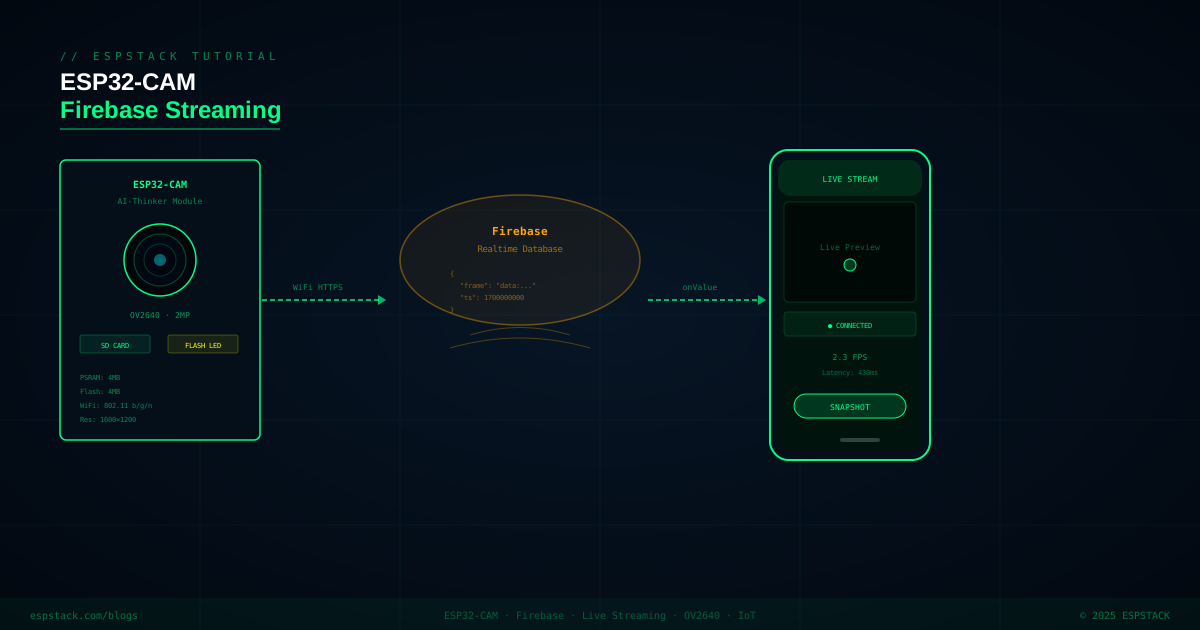
Direct MJPEG streaming from ESP32-CAM works great on a local network, but the moment you need remote access across the internet — without port forwarding, without a static IP, without a VPN — you need a relay. Firebase Realtime Database is one of the simplest approaches: the ESP32-CAM encodes each JPEG frame as base64 and writes it to a database path, and any client anywhere in the world that is listening to that path gets the new frame instantly via Firebase's server-sent events. The result is 2–3 FPS remote video that requires zero network infrastructure beyond WiFi and a free Firebase account.
Prerequisites
| Requirement | Notes |
|---|---|
| ESP32-CAM (AI-Thinker) | OV2640 camera module included; needs FTDI or UNO programmer |
| Firebase project | Free Spark plan is sufficient; enable Realtime Database |
| Firebase ESP32 library | Install Firebase Arduino Client Library for ESP8266 and ESP32 by Mobizt via Library Manager |
| Arduino IDE board | AI-Thinker ESP32-CAM under ESP32 by Espressif |
| PSRAM enabled | Enable in Tools → PSRAM → OPI PSRAM (required for JPEG frame buffer) |
Step 1 — Firebase Project Setup
In the Firebase console, create a new project and enable the Realtime Database. Set the rules to allow authenticated writes (or temporarily allow all writes for testing):
// Firebase Realtime Database rules (testing only — lock down for production)
{
  "rules": {
    "camera": {
      ".read": true,
      ".write": true
    }
  }
}
Note your database URL (e.g. https://your-project-default-rtdb.firebaseio.com) and generate a Web API key from Project Settings → General.
Step 2 — Camera Initialization and JPEG Capture
#include "esp_camera.h"
#include <WiFi.h>
#include <WiFiClientSecure.h>
#include <FirebaseESP32.h>  // Mobizt library

// AI-Thinker ESP32-CAM pin map
#define PWDN_GPIO_NUM     32
#define RESET_GPIO_NUM    -1
#define XCLK_GPIO_NUM      0
#define SIOD_GPIO_NUM     26
#define SIOC_GPIO_NUM     27
#define Y9_GPIO_NUM       35
#define Y8_GPIO_NUM       34
#define Y7_GPIO_NUM       39
#define Y6_GPIO_NUM       36
#define Y5_GPIO_NUM       21
#define Y4_GPIO_NUM       19
#define Y3_GPIO_NUM       18
#define Y2_GPIO_NUM        5
#define VSYNC_GPIO_NUM    25
#define HREF_GPIO_NUM     23
#define PCLK_GPIO_NUM     22

void initCamera() {
  camera_config_t cfg;
  cfg.ledc_channel = LEDC_CHANNEL_0;
  cfg.ledc_timer   = LEDC_TIMER_0;
  cfg.pin_d0 = Y2_GPIO_NUM; cfg.pin_d1 = Y3_GPIO_NUM;
  cfg.pin_d2 = Y4_GPIO_NUM; cfg.pin_d3 = Y5_GPIO_NUM;
  cfg.pin_d4 = Y6_GPIO_NUM; cfg.pin_d5 = Y7_GPIO_NUM;
  cfg.pin_d6 = Y8_GPIO_NUM; cfg.pin_d7 = Y9_GPIO_NUM;
  cfg.pin_xclk   = XCLK_GPIO_NUM;
  cfg.pin_pclk   = PCLK_GPIO_NUM;
  cfg.pin_vsync  = VSYNC_GPIO_NUM;
  cfg.pin_href   = HREF_GPIO_NUM;
  cfg.pin_sccb_sda = SIOD_GPIO_NUM;
  cfg.pin_sccb_scl = SIOC_GPIO_NUM;
  cfg.pin_pwdn   = PWDN_GPIO_NUM;
  cfg.pin_reset  = RESET_GPIO_NUM;
  cfg.xclk_freq_hz = 20000000;
  cfg.pixel_format = PIXFORMAT_JPEG;
  cfg.frame_size   = FRAMESIZE_QVGA;  // 320×240 — keeps base64 under 30 KB
  cfg.jpeg_quality = 15;              // 10=best, 63=worst; 15 gives ~15 KB
  cfg.fb_count     = 1;
  cfg.grab_mode    = CAMERA_GRAB_WHEN_EMPTY;
  cfg.fb_location  = CAMERA_FB_IN_PSRAM;

  esp_err_t err = esp_camera_init(&cfg);
  if (err != ESP_OK) {
    Serial.printf("Camera init failed: 0x%x\n", err);
    ESP.restart();
  }
}Step 3 — Base64 Encode and Write to Firebase
#include "mbedtls/base64.h"

#define WIFI_SSID     "YourSSID"
#define WIFI_PASSWORD "YourPassword"
#define FIREBASE_HOST "your-project-default-rtdb.firebaseio.com"
#define FIREBASE_AUTH "your-database-secret-or-legacy-token"

FirebaseData fbdo;
FirebaseAuth auth;
FirebaseConfig config;

String encodeBase64(const uint8_t *data, size_t len) {
  size_t outLen = 0;
  // Calculate output buffer size (4/3 ratio + padding + null)
  size_t bufLen = ((len + 2) / 3) * 4 + 1;
  uint8_t *buf = (uint8_t *)ps_malloc(bufLen);
  if (!buf) return "";
  mbedtls_base64_encode(buf, bufLen, &outLen, data, len);
  buf[outLen] = '\0';
  String result = (char *)buf;
  free(buf);
  return result;
}

void setup() {
  Serial.begin(115200);
  initCamera();
  WiFi.begin(WIFI_SSID, WIFI_PASSWORD);
  while (WiFi.status() != WL_CONNECTED) { delay(500); Serial.print("."); }
  Serial.println("\nWiFi connected: " + WiFi.localIP().toString());

  config.host = FIREBASE_HOST;
  config.signer.tokens.legacy_token = FIREBASE_AUTH;
  Firebase.begin(&config, &auth);
  Firebase.reconnectWiFi(true);
}

void loop() {
  camera_fb_t *fb = esp_camera_fb_get();
  if (!fb) { Serial.println("Camera capture failed"); delay(500); return; }

  String b64 = encodeBase64(fb->buf, fb->len);
  esp_camera_fb_return(fb);

  if (b64.length() == 0) { delay(200); return; }

  // Write frame to /camera/frame as a base64 string
  // Also write timestamp for clients to detect stale frames
  FirebaseJson json;
  json.set("frame", b64);
  json.set("ts", (int)(millis() / 1000));

  if (!Firebase.setJSON(fbdo, "/camera", json)) {
    Serial.println("Firebase write failed: " + fbdo.errorReason());
  } else {
    Serial.printf("Frame uploaded: %u bytes → %u B64 chars\n",
                  fb->len, b64.length());
  }
  delay(400); // ~2.5 FPS max; Firebase free tier has write limits
}
Step 4 — HTML/JS Viewer
<!DOCTYPE html>
<html>
<head>
  <title>ESP32-CAM Live Stream</title>
  <!-- Firebase SDK v9 compat -->
  <script src="https://www.gstatic.com/firebasejs/9.22.0/firebase-app-compat.js"></script>
  <script src="https://www.gstatic.com/firebasejs/9.22.0/firebase-database-compat.js"></script>
</head>
<body>
  <h2>ESP32-CAM Live Stream</h2>
  <img id="cam" style="max-width:640px;border:2px solid #00f5ff;" />
  <p id="fps">FPS: --</p>
  <script>
    const firebaseConfig = {
      apiKey: "YOUR_API_KEY",
      authDomain: "your-project.firebaseapp.com",
      databaseURL: "https://your-project-default-rtdb.firebaseio.com",
      projectId: "your-project"
    };
    firebase.initializeApp(firebaseConfig);
    const db  = firebase.database();
    const ref = db.ref("/camera");
    const img = document.getElementById("cam");
    let lastTs = 0, frames = 0, fpsTimer = Date.now();

    ref.on("value", snap => {
      const data = snap.val();
      if (!data || !data.frame) return;
      img.src = "data:image/jpeg;base64," + data.frame;
      frames++;
      const now = Date.now();
      if (now - fpsTimer >= 1000) {
        document.getElementById("fps").textContent = "FPS: " + frames;
        frames = 0;
        fpsTimer = now;
      }
    });
  </script>
</body>
</html>
Step 5 — Flutter Viewer with firebase_database
# pubspec.yaml
dependencies:
  flutter:
    sdk: flutter
  firebase_core: ^2.24.0
  firebase_database: ^10.4.0
// lib/camera_stream_screen.dart
import 'dart:convert';
import 'package:flutter/material.dart';
import 'package:firebase_database/firebase_database.dart';
class CameraStreamScreen extends StatefulWidget {
const CameraStreamScreen({super.key});
@override
State<CameraStreamScreen> createState() => _CameraStreamScreenState();
}
class _CameraStreamScreenState extends State<CameraStreamScreen> {
late DatabaseReference _ref;
String? _b64Frame;
int _fps = 0;
int _frameCount = 0;
DateTime _lastFpsTime = DateTime.now();
@override
void initState() {
super.initState();
_ref = FirebaseDatabase.instance.ref('/camera');
_ref.onValue.listen((event) {
final data = event.snapshot.value as Map?;
if (data == null) return;
final frame = data['frame'] as String?;
if (frame == null) return;
_frameCount++;
final now = DateTime.now();
if (now.difference(_lastFpsTime).inMilliseconds >= 1000) {
setState(() { _fps = _frameCount; _frameCount = 0; });
_lastFpsTime = now;
}
setState(() => _b64Frame = frame);
});
}
@override
Widget build(BuildContext context) {
return Scaffold(
appBar: AppBar(title: Text('Live Stream $_fps FPS')),
body: _b64Frame == null
? const Center(child: CircularProgressIndicator())
: Image.memory(base64Decode(_b64Frame!), gaplessPlayback: true),
);
}
}Troubleshooting
| Symptom | Likely Cause | Fix |
|---|---|---|
| Camera init failed (0x105) | PSRAM not enabled in IDE | Tools → PSRAM → OPI PSRAM; also ensure AI-Thinker board selected |
| Firebase write fails every time | Incorrect database URL or auth token | URL must include https:// prefix; use database secret from Project Settings |
| Image in viewer is broken/corrupt | Truncated base64 string due to free-tier string size limit | Reduce JPEG quality (increase number, e.g. 25) or use QQVGA frame size |
| Write rate exceeds free quota | Firebase Spark plan: 100K writes/day | Increase delay between writes to 1000 ms (~1 FPS) |
| Flutter image flickers | setState rebuilds entire widget tree | Use gaplessPlayback: true in Image.memory and keep widget stable |
Next Steps
- Add motion detection using frame differencing (see the related post) and only upload to Firebase when motion is detected — conserves quota dramatically.
- Switch to Firebase Storage for higher-resolution frames and store them as timestamped event photos.
- Implement Firebase Authentication so only your Flutter app can read the camera stream.
- Add a Firebase Cloud Function that triggers on new frame writes and sends a push notification when motion is first detected.
- For lower latency, replace Firebase with MQTT over WebSockets and binary JPEG payloads.