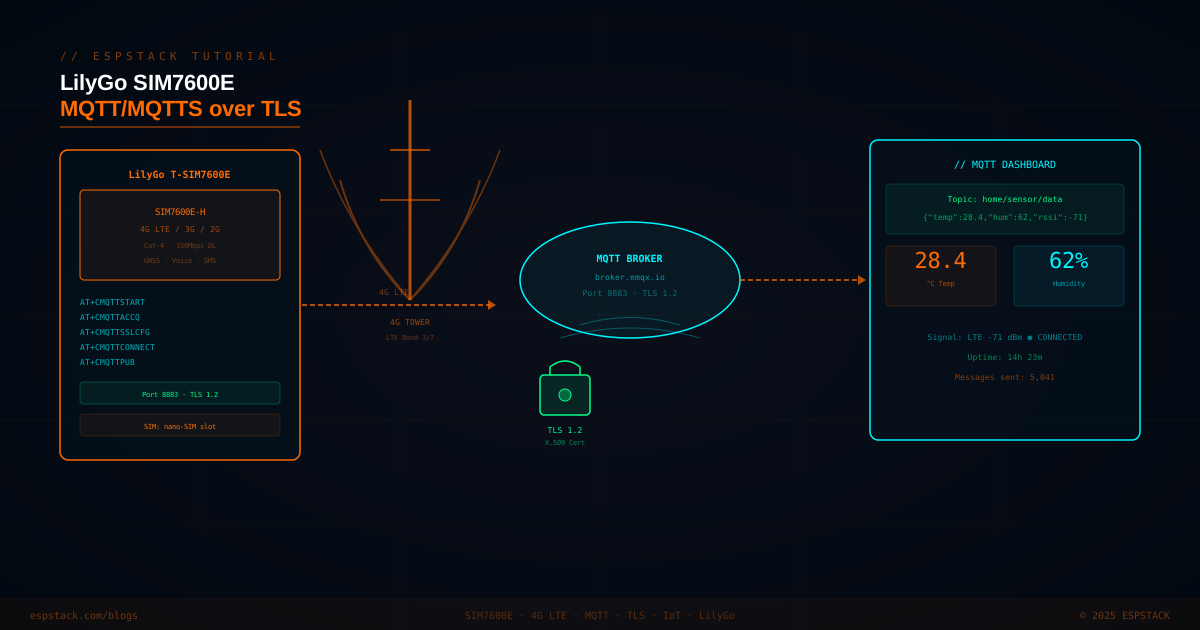
Pushing firmware over plain HTTP leaves your device open to man-in-the-middle attacks — an attacker on the cellular network could intercept and replace your binary with malicious code. This tutorial upgrades the basic 4G OTA workflow with HTTPS encryption using the SIM7600 modem's built-in SSL stack, adds certificate pinning to prevent rogue-CA attacks, and wraps the whole system in a clean Node.js web dashboard where you upload new firmware and monitor fleet status.
Prerequisites
| Item | Details |
|---|---|
| ESP32 Dev Board | Any ESP32 with UART2 (e.g., ESP32 DevKitC or WROVER) |
| SIM7600 Modem | SIM7600E/G/A module with active 4G SIM |
| VPS / Cloud Server | Ubuntu 20.04+ with public IP, Node.js 18+, SSL certificate (Let's Encrypt) |
| Root CA Certificate | PEM format — download from your CA or extract from browser |
| Custom Partition Table | ESP32 partition CSV with OTA_0 (1.5MB) + OTA_1 (1.5MB) |
| MQTT Broker | Mosquitto or HiveMQ Cloud for progress reporting (optional) |
| Arduino IDE 2.x | ESP32 Arduino Core ≥ 2.0.14 |
Step 1: Configure Dual OTA Partition Table
The default ESP32 partition table has only a single app partition. For OTA with rollback you need a custom table with OTA_0, OTA_1, and the OTA data partition.
// partitions_ota.csv — place in your Arduino sketch folder
# Name,   Type, SubType, Offset,   Size,     Flags
nvs,      data, nvs,     0x9000,   0x5000,
otadata,  data, ota,     0xe000,   0x2000,
app0,     app,  ota_0,   0x10000,  0x170000,
app1,     app,  ota_1,   0x180000, 0x170000,
spiffs,   data, spiffs,  0x2F0000, 0x110000,
In Arduino IDE 2.x: Tools → Partition Scheme → select your custom CSV. Or use the ESP-IDF menuconfig if building with IDF. Make sure your compiled binary is under 1.5MB (0x170000 = 1,507,328 bytes).
Step 2: Embed Root CA Certificate for Pinning
Certificate pinning means your firmware only trusts a specific root CA, preventing attacks even if another trusted CA is compromised.
// ca_cert.h — embed your root CA PEM
// Get the CA cert: openssl s_client -connect your-server.com:443 -showcerts
// Copy the root CA (last certificate in the chain) in PEM format

const char* ROOT_CA_CERT = \
"-----BEGIN CERTIFICATE-----\n"
"MIIDrzCCApegAwIBAgIQCDvgVpBCRrGhdWrJWZHHSjANBgkqhkiG9w0BAQUFADBh\n"
"... (your actual root CA PEM lines here) ...\n"
"-----END CERTIFICATE-----\n";

// For Let's Encrypt ISRG Root X1:
// Download from: https://letsencrypt.org/certs/isrgrootx1.pem
Step 3: HTTPS OTA via SIM7600 SSL AT Commands
The SIM7600 has a built-in TLS/SSL stack accessible via AT commands. Use AT+CHTTPSSTART to open the SSL context, AT+CHTTPSOPSE to configure the server, and AT+CHTTPSGET to download.
// https_ota_sim7600.ino — HTTPS OTA with AT+CHTTPS commands
#include <Update.h>
#include <esp_ota_ops.h>
#include "ca_cert.h"

#define HTTPS_SERVER "your-server.com"
#define HTTPS_PORT   443
#define VERSION_PATH "/api/version"
#define FIRMWARE_PATH "/api/firmware.bin"

bool httpsOTADownload() {
  // Step 1: Load CA cert into modem SSL store
  // Send PEM cert via AT+CSSLCFG
  modemSerial.println("AT+CSSLCFG=\"sslversion\",0,4"); // TLS 1.2
  delay(300);
  modemSerial.println("AT+CSSLCFG=\"authmode\",0,2");   // Verify server cert
  delay(300);
  // Upload CA cert (send PEM as a file to modem filesystem)
  // AT+CFSINIT, AT+CFSOPEN, AT+CFSWRITE, AT+CFSCLOSE, AT+CFSTERM
  uploadCAToCModem();

  // Step 2: Start HTTPS session
  if (!sendAT("AT+CHTTPSSTART", "OK", 5000)) return false;

  // Step 3: Open HTTPS connection to server
  String openCmd = "AT+CHTTPSOPSE=\"";
  openCmd += HTTPS_SERVER;
  openCmd += "\",443,2"; // 2 = SSL with server auth
  if (!sendAT(openCmd.c_str(), "OK", 15000)) {
    sendAT("AT+CHTTPSSTOP", "OK", 3000);
    return false;
  }

  // Step 4: Send HTTPS GET for version check
  String req = "GET " + String(VERSION_PATH) + " HTTP/1.1\r\nHost: ";
  req += HTTPS_SERVER;
  req += "\r\nConnection: keep-alive\r\n\r\n";

  String sendCmd = "AT+CHTTPSSEND=" + String(req.length());
  modemSerial.println(sendCmd);
  delay(300);
  modemSerial.print(req);

  String versionResp = readHTTPSResponse(5000);
  String remoteVersion = parseHTTPBody(versionResp);
  remoteVersion.trim();

  // Get current version from OTA description
  const esp_app_desc_t* appDesc = esp_ota_get_app_description();
  String currentVersion = String(appDesc->version);

  if (remoteVersion == currentVersion) {
    Serial.println("Firmware up to date.");
    sendAT("AT+CHTTPSSTOP", "OK", 3000);
    return false;
  }

  Serial.printf("Updating %s -> %s\n", currentVersion.c_str(), remoteVersion.c_str());

  // Step 5: GET firmware binary
  String firmReq = "GET " + String(FIRMWARE_PATH) + " HTTP/1.1\r\nHost: ";
  firmReq += HTTPS_SERVER;
  firmReq += "\r\nConnection: close\r\n\r\n";

  sendCmd = "AT+CHTTPSSEND=" + String(firmReq.length());
  modemSerial.println(sendCmd);
  delay(300);
  modemSerial.print(firmReq);

  // Parse headers
  String headers = readUntilBody(20000);
  size_t fileSize = parseContentLength(headers);
  Serial.printf("Firmware size: %u bytes\n", fileSize);

  // Begin OTA write to OTA_1 partition
  const esp_partition_t* updatePartition = esp_ota_get_next_update_partition(NULL);
  esp_ota_handle_t otaHandle;
  if (esp_ota_begin(updatePartition, fileSize, &otaHandle) != ESP_OK) {
    Serial.println("esp_ota_begin failed");
    sendAT("AT+CHTTPSSTOP","OK",3000);
    return false;
  }

  // Stream binary
  uint8_t buf[512];
  size_t written = 0;
  uint32_t start = millis();

  while (written < fileSize && millis() - start < 120000) {
    if (modemSerial.available()) {
      int toRead = min((int)sizeof(buf), (int)(fileSize - written));
      int n = modemSerial.readBytes(buf, toRead);
      if (esp_ota_write(otaHandle, buf, n) != ESP_OK) {
        Serial.println("esp_ota_write failed");
        esp_ota_abort(otaHandle);
        sendAT("AT+CHTTPSSTOP","OK",3000);
        return false;
      }
      written += n;
      Serial.printf("OTA: %u / %u bytes (%.1f%%)\r", written, fileSize, 100.0*written/fileSize);
    }
  }

  if (esp_ota_end(otaHandle) != ESP_OK) {
    Serial.println("esp_ota_end failed — possible checksum error");
    sendAT("AT+CHTTPSSTOP","OK",3000);
    return false;
  }

  esp_ota_set_boot_partition(updatePartition);
  sendAT("AT+CHTTPSSTOP","OK",3000);
  Serial.println("\nOTA complete. Rebooting into new firmware...");
  esp_restart();
  return true;
}

String readHTTPSResponse(uint32_t timeout) {
  String resp = "";
  uint32_t start = millis();
  while (millis() - start < timeout) {
    while (modemSerial.available()) resp += (char)modemSerial.read();
  }
  return resp;
}

String parseHTTPBody(String resp) {
  int idx = resp.indexOf("\r\n\r\n");
  if (idx == -1) return "";
  return resp.substring(idx + 4);
}

size_t parseContentLength(String headers) {
  int idx = headers.indexOf("Content-Length:");
  if (idx == -1) return 0;
  int end = headers.indexOf("\r\n", idx);
  String val = headers.substring(idx + 15, end);
  val.trim();
  return val.toInt();
}

String readUntilBody(uint32_t timeout) {
  String resp = "";
  uint32_t start = millis();
  while (millis() - start < timeout) {
    while (modemSerial.available()) {
      resp += (char)modemSerial.read();
      if (resp.endsWith("\r\n\r\n")) return resp;
    }
  }
  return resp;
}

void uploadCAToCModem() {
  // Write CA PEM to modem filesystem for SSL verification
  // This is a simplified sketch; in practice use AT+CFSINIT etc.
  // Alternatively: AT+CSSLCFG="cacert",0,"cacert.pem" after upload
  Serial.println("Uploading CA cert to modem... (see full video for AT+CFSWRITE flow)");
}
Step 4: Node.js OTA Dashboard Server
A minimal Express.js server provides the /api/version and /api/firmware.bin endpoints, plus a simple HTML dashboard for uploading new binaries.
// server.js — Node.js OTA dashboard
const express = require('express');
const multer  = require('multer');
const fs      = require('fs');
const path    = require('path');
const https   = require('https');

const app = express();
const upload = multer({ dest: 'uploads/' });

let currentVersion = '1.0.0';
let firmwarePath   = null;

// SSL (Let's Encrypt)
const sslOptions = {
  key:  fs.readFileSync('/etc/letsencrypt/live/your-server.com/privkey.pem'),
  cert: fs.readFileSync('/etc/letsencrypt/live/your-server.com/fullchain.pem')
};

// Version endpoint
app.get('/api/version', (req, res) => {
  res.send(currentVersion);
});

// Firmware download endpoint
app.get('/api/firmware.bin', (req, res) => {
  if (!firmwarePath || !fs.existsSync(firmwarePath)) {
    return res.status(404).send('No firmware uploaded');
  }
  res.setHeader('Content-Type', 'application/octet-stream');
  res.setHeader('Content-Disposition', 'attachment; filename="firmware.bin"');
  res.setHeader('Content-Length', fs.statSync(firmwarePath).size);
  fs.createReadStream(firmwarePath).pipe(res);
});

// Upload endpoint
app.post('/api/upload', upload.single('firmware'), (req, res) => {
  if (!req.file) return res.status(400).json({ error: 'No file' });
  firmwarePath = req.file.path;
  currentVersion = req.body.version || '1.0.1';
  res.json({ success: true, version: currentVersion, size: req.file.size });
});

// Simple HTML dashboard
app.get('/', (req, res) => {
  res.send(`<!DOCTYPE html>
<html><head><title>OTA Dashboard</title></head>
<body style="font-family:monospace;background:#111;color:#0f5;padding:40px">
<h2>ESP32 OTA Dashboard</h2>
<p>Current version: <strong>${currentVersion}</strong></p>
<form method="POST" action="/api/upload" enctype="multipart/form-data">
  <input type="text" name="version" placeholder="New version (e.g. 1.0.2)" required/><br/><br/>
  <input type="file" name="firmware" accept=".bin" required/><br/><br/>
  <button type="submit">Upload Firmware</button>
</form>
</body></html>`);
});

https.createServer(sslOptions, app).listen(443, () => {
  console.log('OTA Dashboard running on https://your-server.com');
});
npm install express multer. Use PM2 to keep it running: pm2 start server.js.Step 5: MQTT Progress Reporting
Report OTA status back to your dashboard via MQTT so you can monitor fleet-wide update progress in real time.
// mqtt_report.ino — MQTT OTA status via SIM7600 MQTT AT commands
// SIM7600 MQTT AT commands: AT+CMQTTSTART, AT+CMQTTACCQ, AT+CMQTTCONNECT
// AT+CMQTTTOPIC, AT+CMQTTPAYLOAD, AT+CMQTTPUB

void mqttReportOTAStatus(const char* status, float progress) {
  // Assumes MQTT already connected
  char payload[128];
  snprintf(payload, sizeof(payload),
    "{\"device\":\"ESP32_001\",\"status\":\"%s\",\"progress\":%.1f,\"version\":\"%s\"}",
    status, progress, CURRENT_VERSION);

  String topicCmd = "AT+CMQTTTOPIC=0," + String(strlen("ota/status"));
  modemSerial.println(topicCmd);
  delay(200);
  modemSerial.println("ota/status");

  String payCmd = "AT+CMQTTPAYLOAD=0," + String(strlen(payload));
  modemSerial.println(payCmd);
  delay(200);
  modemSerial.println(payload);

  modemSerial.println("AT+CMQTTPUB=0,1,60");
  delay(1000);
}
Step 6: Rollback on Boot Failure
// validation.ino — self-test and rollback
#include <esp_ota_ops.h>

void setup() {
  Serial.begin(115200);

  // Validate new firmware on first boot after OTA
  const esp_partition_t* running = esp_ota_get_running_partition();
  esp_ota_img_states_t state;
  if (esp_ota_get_state_partition(running, &state) == ESP_OK) {
    if (state == ESP_OTA_IMG_PENDING_VERIFY) {
      Serial.println("New firmware — running self-test...");
      if (selfTestPassed()) {
        esp_ota_mark_app_valid_cancel_rollback();
        Serial.println("Self-test PASSED. Firmware confirmed.");
      } else {
        Serial.println("Self-test FAILED. Rolling back to previous firmware.");
        esp_ota_mark_app_invalid_rollback_and_reboot();
        // ^ This reboots immediately into OTA_0
      }
    }
  }

  // Rest of setup: modem init, MQTT, etc.
  modemInit();
}

bool selfTestPassed() {
  // Check modem responds
  if (!sendAT("AT", "OK", 2000)) return false;
  // Check NVS readable
  // Check sensor initialized
  return true;
}
Troubleshooting
| Problem | Cause | Fix |
|---|---|---|
| AT+CHTTPSOPSE returns ERROR | CA cert not loaded in modem or wrong SSL mode | Verify cert upload with AT+CFSLS; use AT+CSSLCFG="cacert" to confirm |
| TLS handshake timeout | Server TLS 1.3 only, modem supports TLS 1.2 max | Configure server to allow TLS 1.2: ssl_protocols TLSv1.2 TLSv1.3 in nginx.conf |
| esp_ota_begin returns ESP_ERR_OTA_PARTITION_CONFLICT | Running from OTA_1, trying to write OTA_1 | Use esp_ota_get_next_update_partition(NULL) — it automatically picks the idle partition |
| Rollback not triggering | Firmware not compiled with rollback support | Enable: CONFIG_BOOTLOADER_APP_ROLLBACK_ENABLE=y in sdkconfig or via Arduino board flags |
| Node.js server rejects binary upload | multer default 1MB limit | Set multer({ limits: { fileSize: 4 * 1024 * 1024 } }) |
Next Steps
- Add firmware code signing (ECDSA) so only your key can authorize updates
- Implement staged rollouts — update 10% of devices first, monitor, then continue
- Add a fleet dashboard with device list, current versions, and last-seen timestamps
- Explore the plain HTTP version for simpler non-production use cases
- Combine with MQTT for bi-directional OTA control (trigger updates remotely on demand)