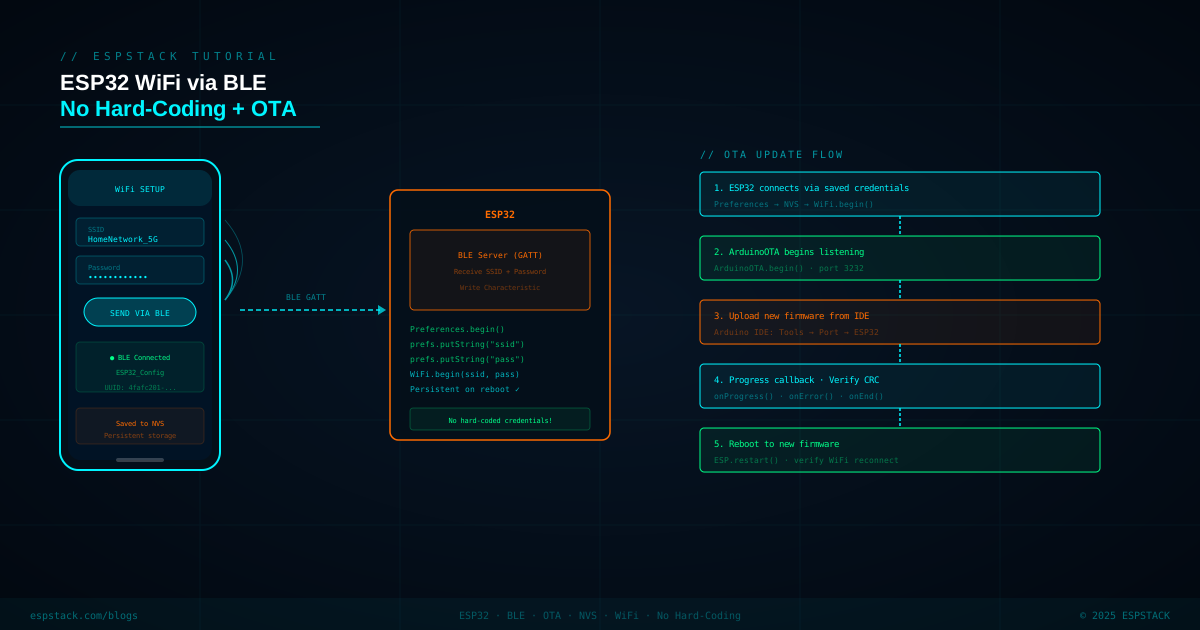
Hard-coding your WiFi SSID and password into firmware is a beginner habit that creates real problems in production: the firmware breaks the moment credentials change, you can't ship devices to customers who have different networks, and credentials end up committed to git history. This tutorial shows the professional alternative — provision WiFi credentials over BLE at first boot, persist them to NVS (non-volatile storage), and enable OTA updates so you can push new firmware wirelessly without ever touching a USB cable again.
Preferences, connects to WiFi, and starts ArduinoOTA. On all subsequent boots it reads NVS and reconnects automatically. OTA updates are pushed from Arduino IDE over the local network.
Prerequisites
| Component | Notes |
|---|---|
| ESP32 DevKit | Any variant — must have WiFi + BLE |
| Smartphone (iOS or Android) | For BLE provisioning; any BLE GATT app works (e.g., nRF Connect) |
| Arduino IDE 2.x | With ESP32 by Espressif board package |
| ArduinoOTA library | Built into the ESP32 core — no separate install |
Step 1 — NVS Credentials: Read on Boot
On every boot, check NVS for stored credentials. If they exist, skip BLE provisioning and connect directly. This makes the provisioning flow a one-time setup, not a burden on every reboot.
#include <Preferences.h>
#include <WiFi.h>
#include <ArduinoOTA.h>
#include <BLEDevice.h>
#include <BLEServer.h>
#include <BLEUtils.h>

Preferences prefs;

String savedSSID, savedPass;

bool loadCredentials() {
  prefs.begin("wifi-cfg", true); // read-only
  savedSSID = prefs.getString("ssid", "");
  savedPass = prefs.getString("pass", "");
  prefs.end();
  return savedSSID.length() > 0;
}

void saveCredentials(const String &ssid, const String &pass) {
  prefs.begin("wifi-cfg", false);
  prefs.putString("ssid", ssid);
  prefs.putString("pass", pass);
  prefs.end();
}
Step 2 — BLE GATT Provisioning Service
Create a BLE server with one service and two writable characteristics: one for SSID and one for password. When both are written the callback saves them and triggers a reconnect. The UUID values below are arbitrary — generate your own with uuidgen for production use.
#define SERVICE_UUID   "4fafc201-1fb5-459e-8fcc-c5c9c331914b"
#define CHAR_SSID_UUID "beb5483e-36e1-4688-b7f5-ea07361b26a8"
#define CHAR_PASS_UUID "cba1d466-344c-4be3-ab3f-189f80dd7518"

volatile bool credentialsReceived = false;
String bleSSID, blePass;

class WiFiProvCallback : public BLECharacteristicCallbacks {
  BLECharacteristic *pSSIDChar, *pPassChar;
public:
  WiFiProvCallback(BLECharacteristic *s, BLECharacteristic *p)
    : pSSIDChar(s), pPassChar(p) {}

  void onWrite(BLECharacteristic *pChar) override {
    std::string val = pChar->getValue();
    if (pChar == pSSIDChar) bleSSID = String(val.c_str());
    if (pChar == pPassChar)  blePass = String(val.c_str());

    // Save and reconnect once both fields are written
    if (bleSSID.length() > 0 && blePass.length() > 0) {
      saveCredentials(bleSSID, blePass);
      credentialsReceived = true;
    }
  }
};

BLEServer *pServer = nullptr;

void startBLEProvisioning() {
  BLEDevice::init("ESP32_Config");
  pServer = BLEDevice::createServer();
  BLEService *pSvc = pServer->createService(SERVICE_UUID);

  BLECharacteristic *pSSID = pSvc->createCharacteristic(
    CHAR_SSID_UUID,
    BLECharacteristic::PROPERTY_WRITE | BLECharacteristic::PROPERTY_READ
  );
  BLECharacteristic *pPass = pSvc->createCharacteristic(
    CHAR_PASS_UUID,
    BLECharacteristic::PROPERTY_WRITE
  );

  WiFiProvCallback *cb = new WiFiProvCallback(pSSID, pPass);
  pSSID->setCallbacks(cb);
  pPass->setCallbacks(cb);

  pSvc->start();
  pServer->getAdvertising()->start();
  Serial.println("BLE provisioning started — waiting for credentials...");
}
Step 3 — Connect to WiFi
After credentials are received or loaded from NVS, connect to WiFi with a timeout. If connection fails (wrong password, network unreachable) fall back to BLE provisioning to allow the user to re-enter credentials.
bool connectWiFi(const String &ssid, const String &pass) {
  WiFi.begin(ssid.c_str(), pass.c_str());
  Serial.print("Connecting to WiFi");
  uint32_t t0 = millis();
  while (WiFi.status() != WL_CONNECTED) {
    if (millis() - t0 > 15000) {
      Serial.println("\nWiFi timeout!");
      return false;
    }
    delay(500);
    Serial.print(".");
  }
  Serial.printf("\nConnected! IP: %s\n", WiFi.localIP().toString().c_str());
  return true;
}Step 4 — ArduinoOTA Setup
Once WiFi is up, initialize ArduinoOTA. It listens on port 3232 (mDNS advertised) so Arduino IDE shows the device under Tools → Port as a network port. Optionally set an OTA password to prevent unauthorized uploads on shared networks.
void setupOTA() {
  ArduinoOTA.setHostname("ESP32-IoT");
  // ArduinoOTA.setPassword("secure_ota_pass"); // optional

  ArduinoOTA.onStart([]() {
    Serial.println("OTA Start");
  });
  ArduinoOTA.onEnd([]() {
    Serial.println("\nOTA End — rebooting");
  });
  ArduinoOTA.onProgress([](unsigned int progress, unsigned int total) {
    Serial.printf("OTA Progress: %u%%\r", (progress * 100) / total);
  });
  ArduinoOTA.onError([](ota_error_t error) {
    Serial.printf("OTA Error[%u]: ", error);
    if      (error == OTA_AUTH_ERROR)    Serial.println("Auth Failed");
    else if (error == OTA_BEGIN_ERROR)   Serial.println("Begin Failed");
    else if (error == OTA_CONNECT_ERROR) Serial.println("Connect Failed");
    else if (error == OTA_RECEIVE_ERROR) Serial.println("Receive Failed");
    else if (error == OTA_END_ERROR)     Serial.println("End Failed");
  });

  ArduinoOTA.begin();
  Serial.println("ArduinoOTA ready");
}
Step 5 — Full setup() and loop()
void setup() {
  Serial.begin(115200);

  if (loadCredentials()) {
    Serial.printf("Found saved SSID: %s\n", savedSSID.c_str());
    if (!connectWiFi(savedSSID, savedPass)) {
      // Clear stale credentials and re-provision
      saveCredentials("", "");
      startBLEProvisioning();
    } else {
      setupOTA();
    }
  } else {
    startBLEProvisioning();
  }
}

void loop() {
  if (credentialsReceived) {
    credentialsReceived = false;
    BLEDevice::deinit(true); // stop BLE to free RAM for WiFi
    if (connectWiFi(bleSSID, blePass)) {
      setupOTA();
    }
  }
  ArduinoOTA.handle(); // must be called every loop iteration
}BLEDevice::deinit(true) after provisioning is complete to reclaim ~80 KB of heap before starting WiFi-heavy operations.
Troubleshooting
| Symptom | Likely Cause | Fix |
|---|---|---|
| BLE not visible after WiFi connect | Not expected — BLE is stopped after provisioning | This is correct behaviour; restart ESP32 to re-provision |
| OTA port not visible in IDE | mDNS not resolving or firewall blocking port 3232 | Ensure phone/PC is on same subnet; disable host firewall temporarily |
| NVS values lost after firmware update | NVS partition erased by full flash | Use "Minimal SPIFFS" partition scheme which preserves NVS between OTA uploads |
| WiFi connects but OTA upload fails mid-transfer | Weak WiFi signal or packet loss | Move closer to AP; increase OTA timeout in ArduinoOTA source if needed |
| Wrong credentials stored, can't provision again | NVS has stale values | Add a "factory reset" button that calls prefs.clear() and restarts |
Next Steps
- Add a captive-portal fallback using
WiFiManagerlibrary for users who prefer a browser-based setup over a custom BLE app. - Implement a "factory reset" button (GPIO + hold 5 s) that clears NVS credentials and re-enters BLE provisioning mode.
- Host the OTA binary on an HTTPS server and use
HTTPUpdateto pull firmware automatically when a new version is published. - Add a BLE status notify characteristic that pushes the ESP32's IP address back to the phone app after successful WiFi connection.